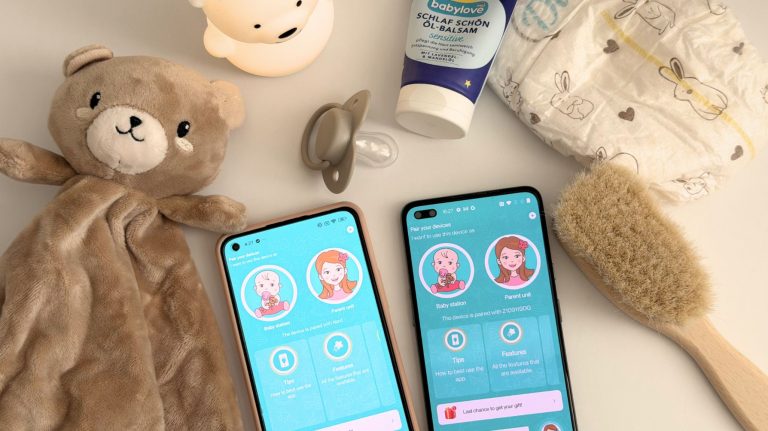
Guide to Setting Up the Annie Baby Monitor App on Android Devices
- Created:
4. 8. 2026 - Updated:
7. 8. 2026 -


That old Android phone sitting in your drawer could be watching over your baby in the next few minutes.
With the Annie Baby Monitor app, one device becomes the Baby Station beside your baby, while another phone, tablet, computer, or TV becomes the Parent Station you keep with you.
The basic setup is simple. Install Annie Baby Monitor app on two compatible devices, choose their roles, pair them with a code, and start monitoring. The part Android users should not skip is configuring battery, background activity, and notification permissions. These settings help prevent Android from closing the app or delaying an important alert.
This guide covers the complete setup, including:
What You Need Before You Start
Prepare the following:
- An Android phone or tablet running Android 8.0 or later
- A second compatible phone, tablet, computer, or Android TV
- Annie Baby Monitor app installed or opened on both devices
- A reliable Wi-Fi or mobile data connection
- A tripod or phone stand and charger for the Baby Station
‼️ Annie Baby Monitor app currently supports Android 8 or later and iOS 14 or later. Parent Stations can also run on Windows, macOS, Linux, supported web browsers, and Android TV.
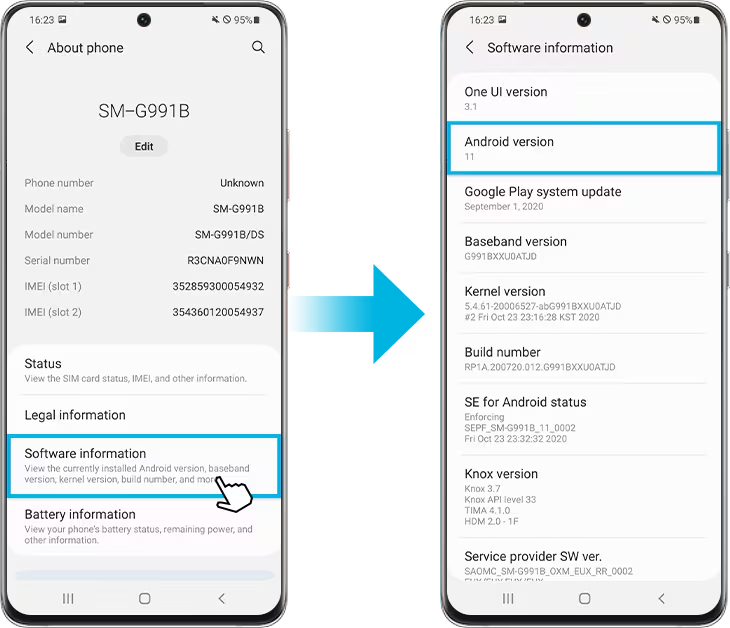
Check Your Android Version
On most Android phones:
- Open Settings.
- Tap About phone or About tablet.
- Find Android version.
- Confirm that the device is running Android 8.0 or newer.
The exact menu names may differ slightly depending on your phone manufacturer.
How Annie Baby Monitor App Works
Annie Baby Monitor app turns devices you already own into a flexible baby monitoring system:
- The Baby Station stays near your baby and uses its camera and microphone.
- The Parent Station stays with you and displays the live feed.
- The devices connect through the internet using Wi-Fi or mobile data.
- Pairing is completed with a numeric code or QR code.
💡 You can mix different platforms. For example, an Android phone can work with another Android phone, an iPhone, a computer, or Android TV.
How to Set Up Annie Baby Monitor app on Two Android Devices
This is the most common Android setup. An older phone usually works well as the Baby Station, while your everyday phone becomes the Parent Station.
💡 Video tutorial on how to use Annie Baby Monitor app on two android phones
Step 1: Install Annie Baby Monitor app on Both Phones
Open Google Play on both Android devices, search for Annie Baby Monitor, and install the official app published by Master App Solutions.
Update the app on both devices before pairing them. Different app versions can sometimes cause connection problems.
Step 2: Open Annie Baby Monitor app and Choose the Device Roles
On the phone staying in the nursery, select Baby Station.
On the phone you will carry, select Parent Station.
Use the better camera as the Baby Station when possible. However, the Parent Station should also have a dependable battery and a stable internet connection.
Step 3: Pair the Android Phones
Follow the pairing instructions shown in the app:
- Tap Create code on the first device.
- Tap Enter code on the second device.
- Enter the numeric code or scan the QR code.
- Wait for Annie Baby Monitor app to confirm the connection.
You can also sign in to the same family account on the second device instead of pairing it manually. One family account can connect multiple devices.
Step 4: Test the Connection
Before placing the Baby Station in the nursery, test:
- Live video
- Live sound
- Motion detection
- Noise detection
- Two-way talk
- Night Mode
- Lullabies or white noise
- Low-battery alerts
- Connection-loss alerts
Lock the Parent Station screen and create a quiet test sound near the Baby Station. Confirm that the alert arrives promptly.
Step 5: Position the Baby Station Safely
Place the phone on a stable stand with a clear view of the sleeping area.
Annie Baby Monitor app states that approximately 2 metres, or 7 feet, is generally close enough for the microphone to capture sound. Keep the phone, charger, and all cables completely outside the baby’s reach. The U.S. Consumer Product Safety Commission recommends keeping baby-monitor cords at least 3 feet away from the crib.
Never place the phone or charging cable inside the crib, bassinet, or play yard.
A baby monitor also does not replace safe-sleep practices or appropriate adult supervision.

How to Connect an Android Phone to an iPhone
Annie Baby Monitor app supports mixed Android and Apple setups. Either platform can be used as the Baby Station or Parent Station.
Android Baby Station and iPhone Parent Station
- Install Annie Baby Monitor app from Google Play on the Android phone.
- Install Annie Baby Monitor app from the App Store on the iPhone.
- Choose Baby Station on Android.
- Choose Parent Station on the iPhone.
- Create and enter the pairing code, or scan the QR code.
- Test the live video, audio, and notifications.
This is a useful setup when you have an older Android phone available but use an iPhone every day.
iPhone Baby Station and Android Parent Station
Reverse the roles:
- Select Baby Station on the iPhone.
- Select Parent Station on Android.
- Pair the devices.
- Allow notifications and background activity on the Android Parent Station.
- Run a test with both screens locked.

How to Use an Android Phone With a Computer
A computer is a convenient Parent Station when you are working, studying, or simply want a larger screen.
Annie Baby Monitor app supports Windows, macOS, and Linux computers. You can install the desktop version or use the web version in Chrome, Firefox, Edge, or Safari. The computer version is currently intended to work as the Parent Station, not as the Baby Station camera.

💡 Video tutorial on how to use an Android phone with a computer
Option 1: Install Annie Baby Monitor app on Your Computer
- Install Annie Baby Monitor app on the Android phone.
- Download the appropriate desktop version for Windows, macOS, or Linux.
- Open Annie Baby Monitor app on both devices.
- Choose Baby Station on the Android phone.
- Choose Parent Station on the computer.
- Pair the devices using the code shown onscreen.
- Start the live monitoring session.
Option 2: Use Annie Baby Monitor app in a Web Browser
The browser version is useful on a work laptop, borrowed computer, or Chromebook where you cannot install another program.
- Install and open Annie Baby Monitor app on the Android phone.
- Open Annie’s web version in a supported browser.
- Select Parent Station on the computer.
- Select Baby Station on Android.
- Follow the onscreen pairing instructions.
- Allow browser notifications when prompted.
- Keep the browser tab open while monitoring.
The web version supports core monitoring functions without requiring a desktop installation.
Computer Settings to Check
For dependable monitoring:
- Keep the computer connected to the internet.
- Make sure the speaker volume is audible.
- Allow browser or desktop notifications.
- Prevent the computer from automatically going to sleep.
- Keep the Annie Baby Monitor window or browser tab open.
- Check whether a company network, firewall, or managed browser is limiting the connection.
Android Permissions Annie Baby Monitor Needs
Android permissions control whether Annie Baby Monitor app can use the camera, hear sound, run in the background, and send alerts.
Open:
Settings → Apps → Annie Baby Monitor
Then review the following settings.
Camera Permission
- The Baby Station needs access to the camera to provide a live video feed.
- Open Permissions, select Camera, and choose Allow while using the app.
Microphone Permission
- The Baby Station also needs microphone access for sound monitoring and two-way communication.
- Open Permissions, select Microphone, and choose Allow while using the app.
Notification Permission
Notifications tell you about detected noise, movement, low battery, or a lost connection.
Open:
Settings → Notifications → App notifications → Annie Baby Monitor
Turn on Allow notifications.
On Android 13 and newer, Annie Baby Monitor app may request notification permission when you first open the app. Do not dismiss this request if you want to receive monitoring alerts.
Also check that:
- Notifications are allowed on the lock screen.
- Notification sound is enabled.
- Do Not Disturb is not silencing Annie Baby Monitor app.
- The phone’s notification volume is high enough to hear.
Background Data
Background data allows an app to exchange information when it is not open onscreen.
Open the Annie Baby Monitor app information page and look for Mobile data, Data usage, or Mobile data and Wi-Fi. Enable:
- Background data
- Unrestricted data usage, particularly when Data Saver is active
Google notes that background data can be required for apps to receive new information and deliver notifications while they are not actively being used.

Sign up to our newsletter
get weekly access to our best deals, tips and tricks.
Turn Off Restrictive Battery Optimisation
Battery optimisation is one of the most common reasons a baby monitor app stops working after the screen is locked.
Android uses battery-saving systems to reduce background activity. When Battery Saver is enabled, some apps, network connections, and notifications may be delayed.
For a standard Android phone or Google Pixel:
- Open Settings.
- Select Apps.
- Open Annie Baby Monitor.
- Tap App battery usage.
- Enable Allow background usage.
- Tap the setting text and select Unrestricted, when available.
Unrestricted background use removes battery limits for that app but may increase power consumption.
Use this setting primarily when Android is interrupting active monitoring or delaying alerts.
Keep the Baby Station connected to power during longer naps and overnight monitoring.
Turn Off “Pause App Activity if Unused”
An older phone used only as a nursery camera may be classified as inactive.
Android can automatically stop unused apps from running in the background, revoke their permissions, and prevent notifications. Open Annie Baby Monitor app information screen, find Unused apps, and turn off Pause app activity if unused.
Manufacturer-Specific Android Issues
Android manufacturers add their own battery-management systems. The setting names can also change after a software update, so use the Settings search box when the path below looks different.
Samsung Galaxy
Samsung may place infrequently used apps into Sleeping or Deep sleeping mode. Deep sleeping apps do not work in the background until they are opened manually.
Open:
Settings → Battery and device care → Battery → Background usage limits
Then:
- Remove Annie Baby Monitor app from Sleeping apps.
- Remove Annie Baby Monitor app from Deep sleeping apps.
- Add Annie Baby Monitor app to Never sleeping apps.
- Turn off Power Saving Mode during troubleshooting.
Samsung explains that apps added to Never sleeping apps remain available in the background, although they may consume more battery.
Xiaomi, Redmi, and POCO
Xiaomi’s battery controls can be particularly aggressive when the screen is locked.
Check the following:
- Open Annie Baby Monitor app settings.
- Set Battery saver or Battery optimisation to No restrictions.
- Enable Background autostart.
- Open Recent apps and lock Annie Baby Monitor app when that option is available.
- Turn off system Battery Saver during troubleshooting.
Xiaomi’s own support guidance recommends No restrictions, autostart permission, and locking an app in the background for services that need to stay connected.
Huawei and Honor
On Huawei and some Honor devices:
- Open Settings, Phone Manager, or Optimizer.
- Find App launch or Launch manager.
- Locate Annie Baby Monitor app.
- Disable Manage automatically.
- Enable Auto-launch.
- Enable Secondary launch, when shown.
- Enable Run in background.
You can also lock Annie Baby Monitor app in the Recent apps screen on supported models.
OnePlus, OPPO, and Realme
Look for Annie Baby Monitor app under App battery management or Battery usage and enable:
- Allow background activity
- Allow foreground activity
- Auto-launch
- Unrestricted battery usage
On OnePlus, Sleep standby optimisation may reduce notification frequency overnight. Realme also recommends enabling background activity and auto-launch for apps that need dependable notifications.
Vivo
Search the phone settings for:
- Background power consumption
- High background power consumption
- Autostart
- Battery optimisation
Allow Annie Baby Monitor app to remain active in the background and lock it in Recent apps where supported.
A 60-Second Android Reliability Test
Run this test after changing your permissions:
- Start a monitoring session.
- Lock both device screens.
- Wait approximately one minute.
- Make a test sound near the Baby Station.
- Confirm that the Parent Station alerts you.
- Open the video feed.
- Switch the Parent Station from Wi-Fi to mobile data.
- Confirm that the connection returns.
- Check that the Baby Station remains online.
- Leave the test running for at least 10 minutes.
Do this before relying on the setup during a nap or overnight.
Common Annie Baby Monitor App Problems on Android
The Devices Will Not Pair
Check that:
- Both devices are connected to the internet.
- Both devices have the latest Annie Baby Monitor app version.
- The pairing code is entered correctly.
- The code has not expired.
- A VPN or restricted network is not interfering.
- Switching from Wi-Fi to mobile data, or vice versa, resolves the issue.
Annie’s FAQ recommends confirming that both devices are online and updated, then trying another Wi-Fi or cellular connection if pairing fails.
Annie Baby Monitor app Disconnects When the Screen Turns Off
Review:
- App battery usage
- Background activity
- Background data
- Battery Saver
- Sleeping-app lists
- Autostart
- Pause app activity if unused
This is usually a power-management issue rather than a problem with the camera itself.
Notifications Arrive Late
Check:
- Android notification permission
- Lock-screen notifications
- Do Not Disturb
- Background data
- Unrestricted battery use
- Manufacturer-specific sleeping-app controls
Restart the Parent Station after changing these settings.
The Camera Preview Is Black
Try the following:
- Confirm camera permission on the Baby Station.
- Close and reopen Annie Baby Monitor app.
- Restart both devices.
- Test another network.
- Run Health Check from the monitoring settings.
- Contact Annie Baby Monitor through the in-app contact form if the problem continues.
Recent developer responses on Google Play specifically recommend restarting both devices, running Health Check, and contacting support with details when preview or connection problems persist.
The Computer Will Not Connect
Confirm that:
- The Android phone is configured as the Baby Station.
- The computer is configured as the Parent Station.
- The browser or desktop application is up to date.
- The computer is not asleep.
- The browser tab remains open.
- Browser notifications and sound are allowed.
- A corporate firewall or VPN is not blocking the service.
Can You Use Annie Baby Monitor app on Android TV?
Yes. Annie Baby Monitor app is available for televisions and multimedia boxes running Android TV.
Android TV works best as a large Parent Station. The Android phone remains beside your baby as the Baby Station.
To connect it:
- Install Annie Baby Monitor app on the Android phone.
- Install Annie Baby Monitor app on the Android TV or TV box.
- Choose Baby Station on the phone.
- Choose Parent Station on the TV.
- Pair them using a numeric code or QR code.
- Test the television’s sound and live video.
The Android TV version includes core functions such as live video and audio, Night Mode, sound monitoring, lullabies, and white noise. It does not include every feature found in the mobile application.

What Google Play Reviews Say
Google Play statistics change by country, device category, and date.
At the time of our check on August 3, 2026, Annie Baby Monitor app Google Play listing displayed:
- More than 500,000 Android downloads
- Approximately 3.2–3.3 stars
- Roughly 1,400–1,600 reviews
The listing was most recently updated on May 6, 2026.
Recent reviews show two clear themes.
Parents appreciate Annie Baby Monitor app’s broad feature set and the ability to connect Android, Apple, and computer devices. However, some reviewers report connection drops, black previews, pairing difficulties, or repeated logouts.
Developer responses ask users to restart both devices, run the in-app Health Check, and send detailed information through the contact form so the team can investigate the specific setup.
The practical takeaway is simple: configure Android’s background settings and run a proper test before your first real monitoring session.
Final Android Setup Checklist
Before leaving the room, confirm that:
- Your phone runs Android 8.0 or later.
- Annie Baby Monitor app is updated on both devices.
- The Baby and Parent Station roles are correct.
- The devices are successfully paired.
- Camera and microphone permissions are enabled.
- Notifications are allowed.
- Background data is enabled.
- Battery restrictions have been removed where necessary.
- Annie Baby Monitor app is excluded from sleeping-app lists.
- The Baby Station is connected to power.
- The phone and charging cable are outside the baby’s reach.
- A test noise triggers an alert.
- The live feed continues after the screens are locked.
Frequently Asked Questions
Annie Baby Monitor app requires Android 8.0 or later.
Yes. Install Annie Baby Monitor app on both phones, choose one as the Baby Station and the other as the Parent Station, and pair them with a numeric or QR code.
Yes. Annie Baby Monitor app supports Android-to-iPhone and iPhone-to-Android monitoring. Either device can act as the Baby Station.
Yes. Annie Baby Monitor app supports Windows, macOS, Linux, and popular web browsers. The current computer version can be used as the Parent Station rather than the Baby Station camera.
No. A SIM card is not required when the phone has a dependable Wi-Fi connection.
The usual causes are battery optimisation, restricted background activity, Data Saver, sleeping-app controls, or disabled autostart.
Yes. Android TV can be used as a Parent Station with live video, audio, Night Mode, lullabies, and white noise.
Yes. Keeping it connected to power helps prevent an interrupted monitoring session. Make sure the cable remains securely outside the baby’s reach.
Turn the Devices You Already Own Into a Baby Monitor
You do not need another piece of hardware taking up space in the nursery.
With Annie Baby Monitor app, an older Android phone can become your Baby Station, while the device that suits your routine becomes the Parent Station—whether that is another Android phone, an iPhone, a computer, or Android TV.
Install Annie Baby Monitor app, pair your devices, allow the necessary Android permissions, and complete one final test.
Then place the Baby Station safely near the sleeping area and keep a reassuring view of your little one close at hand.
Download Annie Baby Monitor for Android and start your free trial.


